Website Builder > Essentials
Custom Components
Learn how to add custom components in the Next.js starter kit with Website Builder.
- how to add custom components to your Website Builder
In this tutorial, we explain how to create, register and use custom components in this Website Builder project.
- Step 1: Add a React component file
- Step 2: Register the component
- Step 3: Ensure the group matches the one registered
- Step 4: Open the editor to verify the component appears in the chosen group
Overview
- Custom components live in the
src/editorComponentsfolder and are provided to the renderer viaeditorComponentsexported fromsrc/editorComponents/index.tsx. - The page renderer (
src/components/DocumentRenderer.tsx) passeseditorComponentstoDocumentRendererfrom@webiny/website-builder-nextjs. - Component groups (used in the editor UI) are registered in
src/contentSdk/initializeContentSdk.tsusingregisterComponentGroup.
Files to Inspect
src/editorComponents/index.tsx— the central list of editor components and input definitionssrc/components/DocumentRenderer.tsx— how components are provided to the renderersrc/contentSdk/initializeContentSdk.ts— where component groups are registered
Step-by-Step: Create a New Custom Component
Step 1: Add a React Component File
Add a React component file under src/editorComponents (or a subfolder). In this tutorial we will create CalloutBox component.
- Prefer exporting a named component (e.g.
export const CalloutBox = () => { ... }). - Keep the component as a standard React functional component.
Example minimal component:
Step 2: Register the Component
Define editor inputs and register the component in src/editorComponents/index.tsx.
- Use
createComponentfrom@webiny/website-builder-nextjsto register the component withname,label,groupandinputs. - Use input helpers such as
createTextInput,createLongTextInput,createLexicalInput,createFileInput,createSelectInput,createSlotInput.
Example registration snippet (add to src/editorComponents/index.tsx):
Notes:
- The
nameproperty defines the unique editor identifier (used by the editor to save/load the block). - The
groupshould match a component group registered insrc/contentSdk/initializeContentSdk(e.g.,custom,basic).
How inputs map to component props
- When the editor renders the page, the
DocumentRendererwill render your component and pass the block data as props. - Typical convention: input names map to prop names. For example,
titlebecomesprops.titleinside your component. - For slot inputs (
createSlotInput) the renderer will pass an array of nested blocks which you should render usingchildrenor a dedicated renderer.
Step 3: Ensure the Group Matches the One Registered
- Component groups (editor categories) are registered in
src/contentSdk/initializeContentSdk.tswithregisterComponentGroup. - Pick an existing group (
basic,sample) or add a new one ininitializeContentSdk.ts.
In this tutorial, we used an existing group, but if you ned to create a new one, for example, a new Demo Group add the following to initializeContentSdk.ts:
Note: the order in which the Component groups show in the Website builder depends on the order in which they were added to the file above.
Keep components presentation-focused; prefer receiving plain data from inputs rather than coupling to editor APIs inside the component.
For rich text, prefer
createLexicalInputwhere content is saved as Lexical nodes and will be rendered byDocumentRenderer.Use
createSlotInputto allow nesting arbitrary content inside your block.Keep components SSR-friendly. Use client-only code (like browser-only libs) inside a child component or guarded by dynamic import to avoid SSR issues.
Step 4: Open the Editor to Verify the Component Appears in the Chosen Group and That It Is Functional.
- Run the site and open a new Page in the editor to verify the component appears in the chosen group.
- Drag and drop the new component in the Page to validate it is functional.
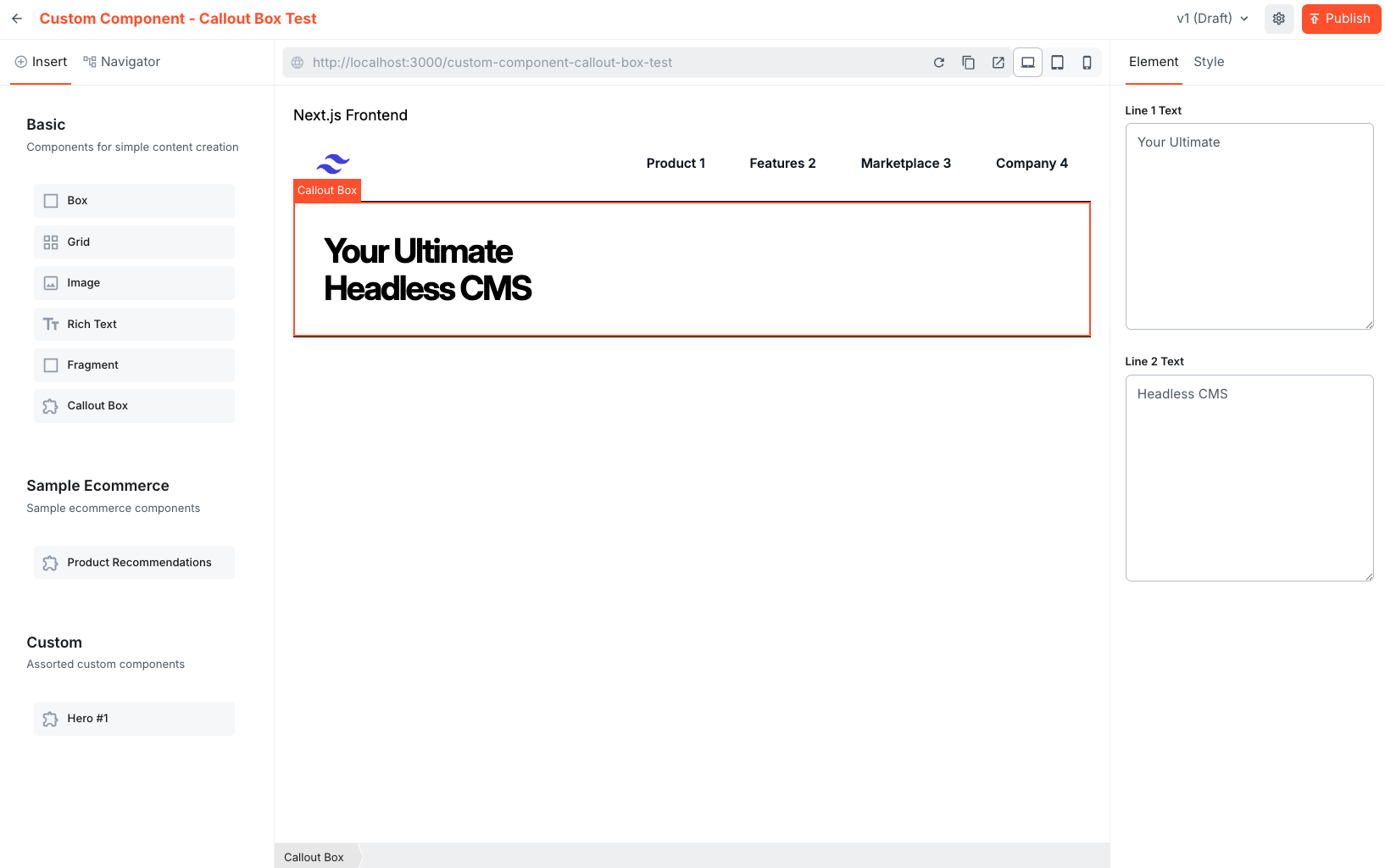 Callout Box Custom Component